

Create a Pull Zone
Log in to your bunny.net dashboard and create a new Pull Zone with your Magento store as the origin URL. Match the protocol (HTTP or HTTPS) of your site exactly. For details, see How to create your first Pull Zone.
Add the required CORS headers
Open your Pull Zone’s Headers settings and add the 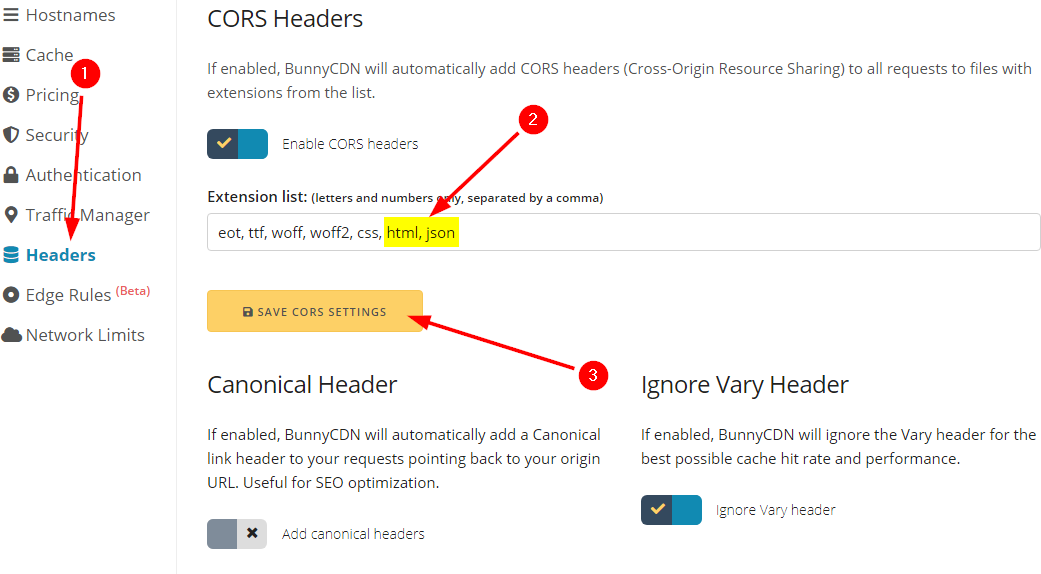
html and json extensions. This is required, otherwise your Magento admin interface won’t work correctly.Configure Magento to use the Pull Zone
Log in to your Magento admin panel and go to Stores → Configuration → General → Web.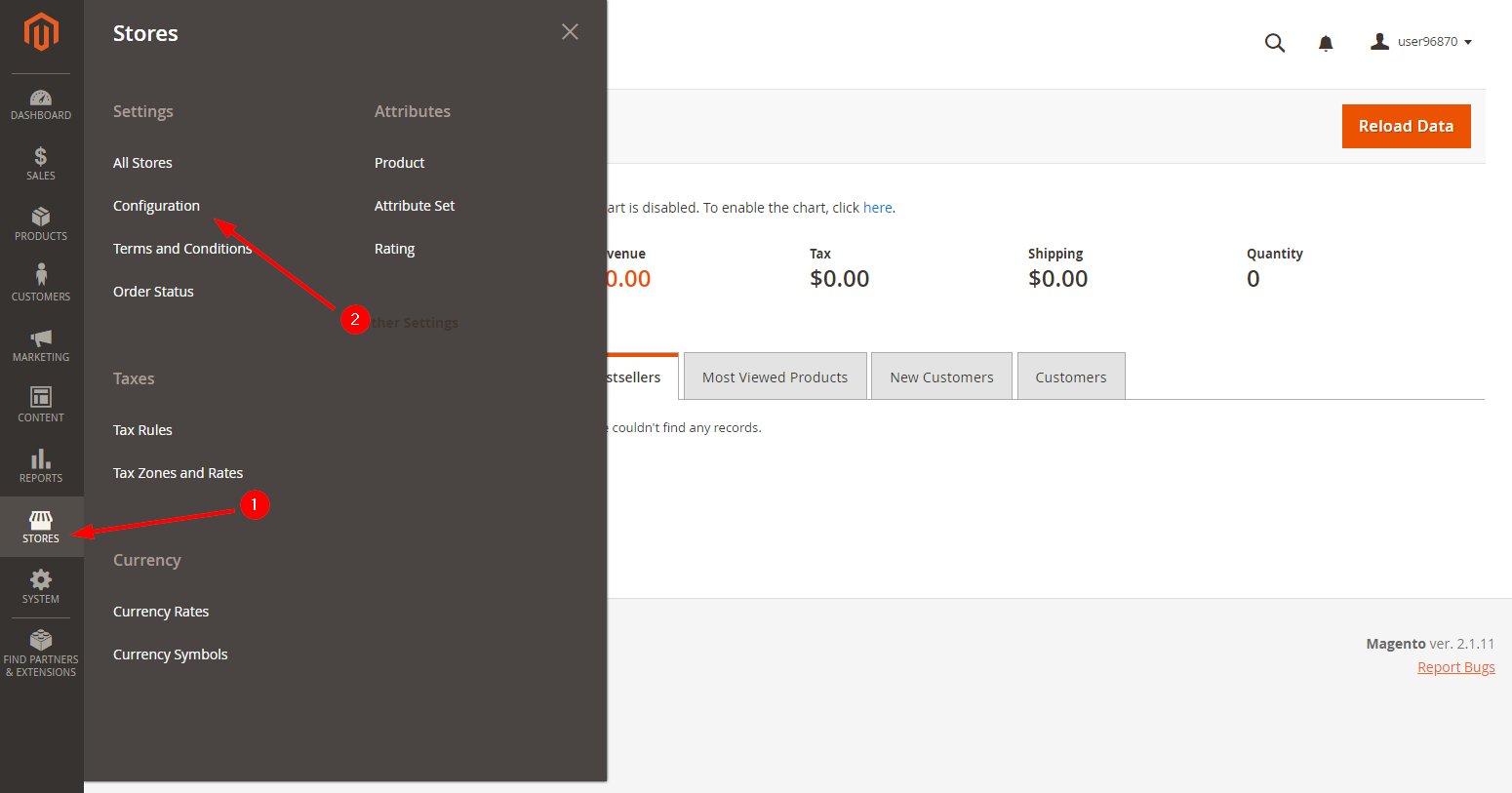
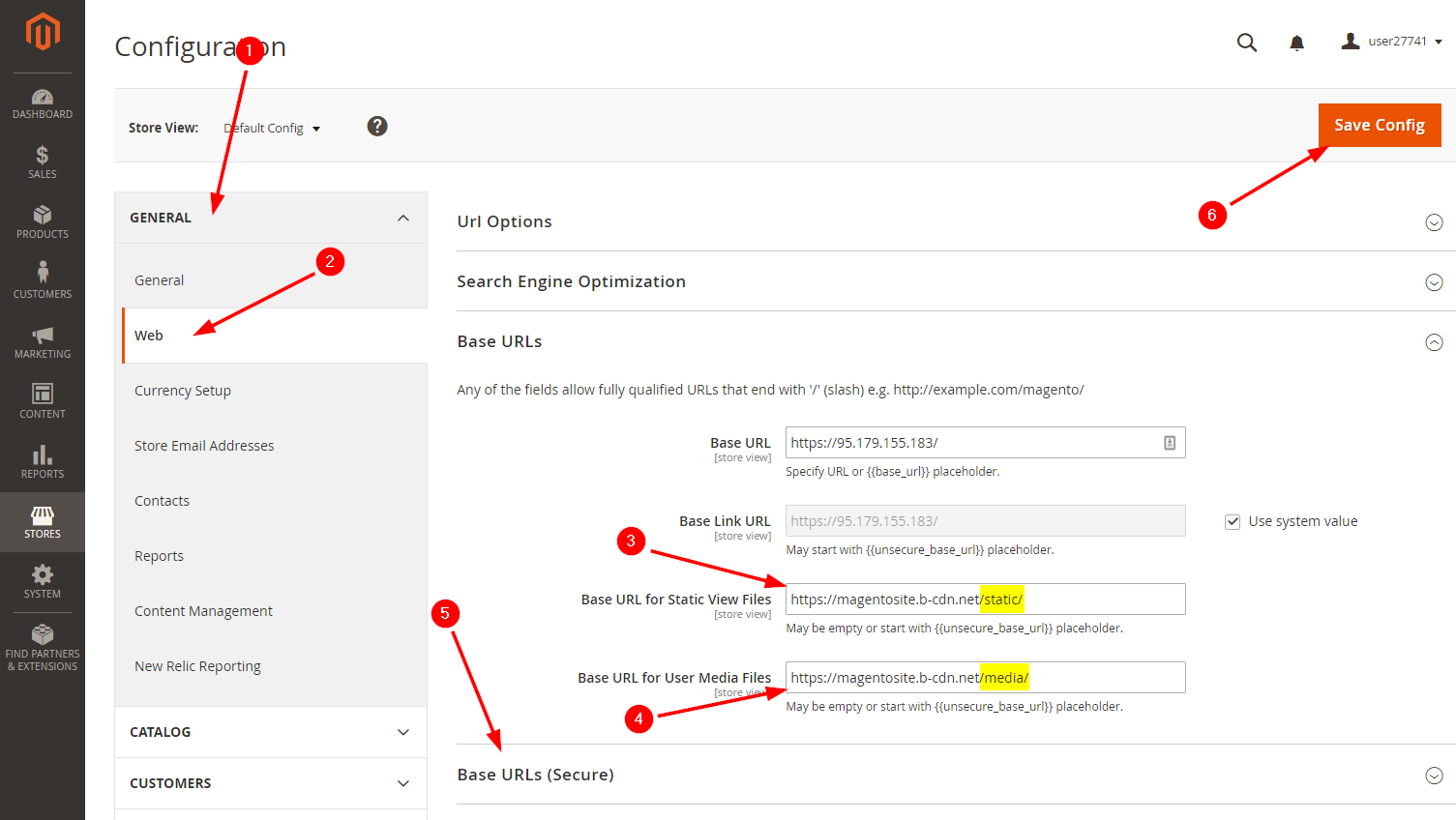
/static/ and /media/ subfolders respectively.https:// version of the URL to avoid connectivity issues. Click Save Config.