> ## Documentation Index
> Fetch the complete documentation index at: https://bunnynet-cb9733c2-support-migration.mintlify.site/llms.txt
> Use this file to discover all available pages before exploring further.
# URL Fetch
> Upload videos to Bunny Stream by providing a remote URL.
If your source video is already hosted at a public URL, you can pull it into your Bunny Stream library directly from the dashboard — no local download or manual re-upload required.
## How to guide
You can now upload your videos directly from a URL over HTTP/HTTPS into your bunny.net video library:
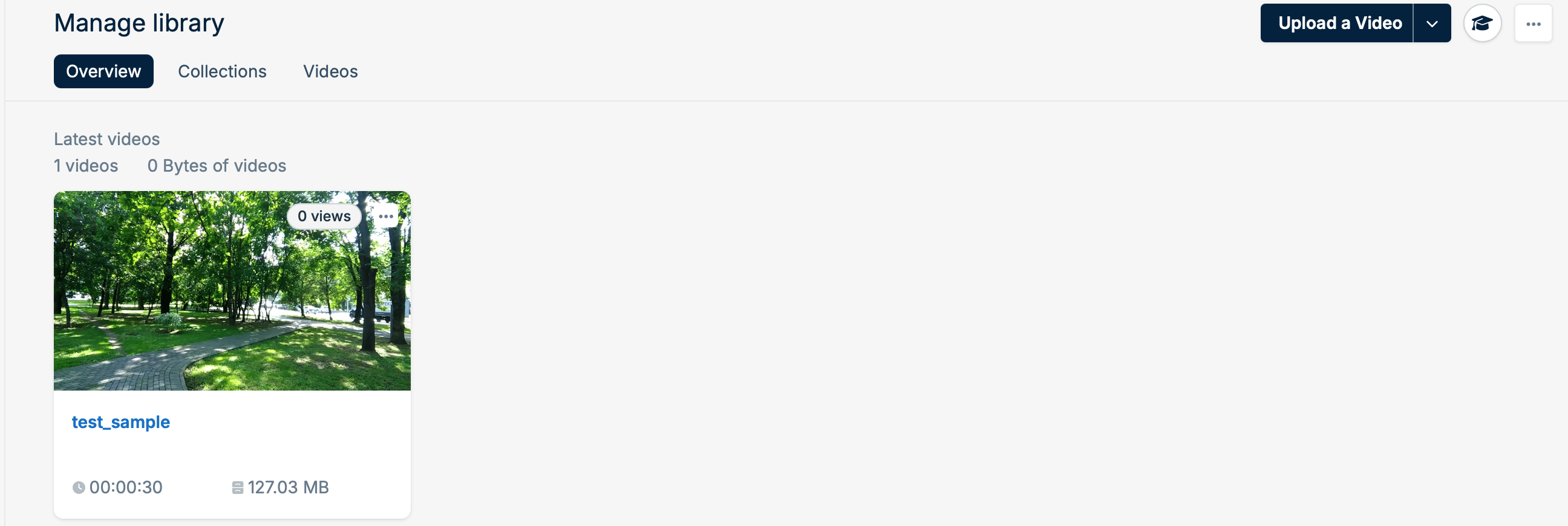
1. Click the **Upload a Video - drop down menu arrow.**
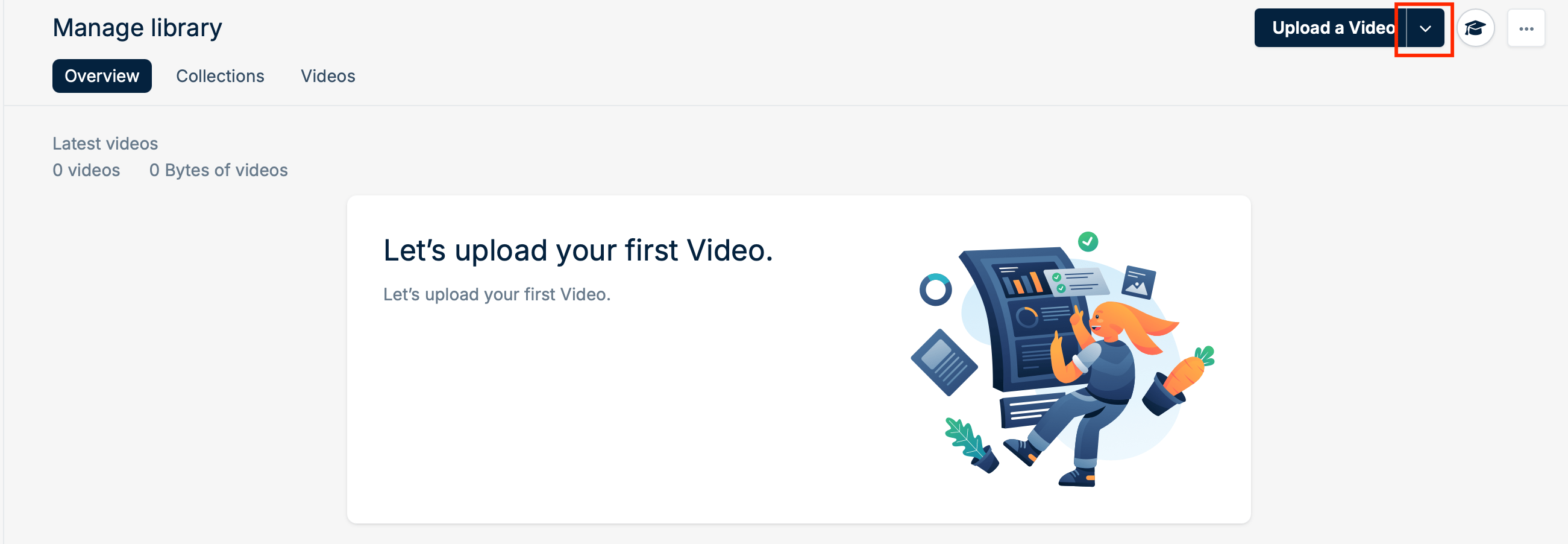 2. Next select the **'Upload Video from URL'** option from the drop down menu.
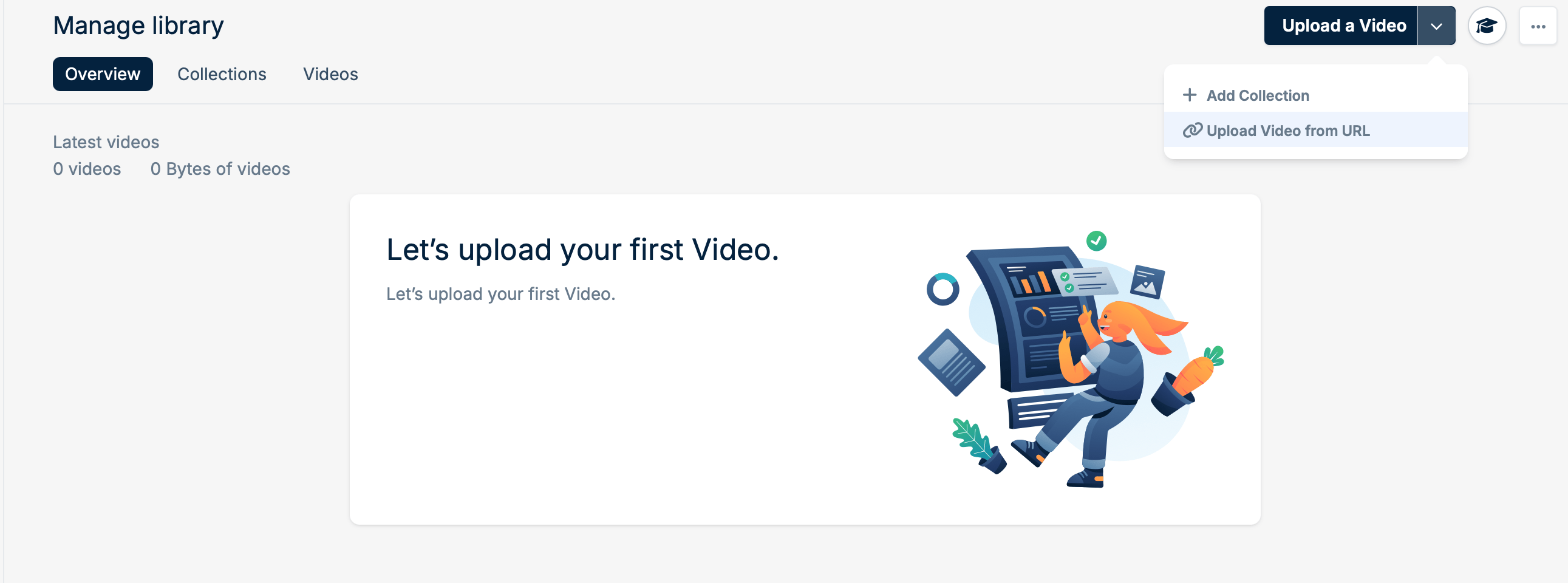 3. The **'Upload video from URL'** popup will open.
1. Enter or paste your **Video URL** and **Title** into the matching fields.
4. Finally click **'Upload Video'** to start the process of uploading directly from a URL.
3. The **'Upload video from URL'** popup will open.
1. Enter or paste your **Video URL** and **Title** into the matching fields.
4. Finally click **'Upload Video'** to start the process of uploading directly from a URL.
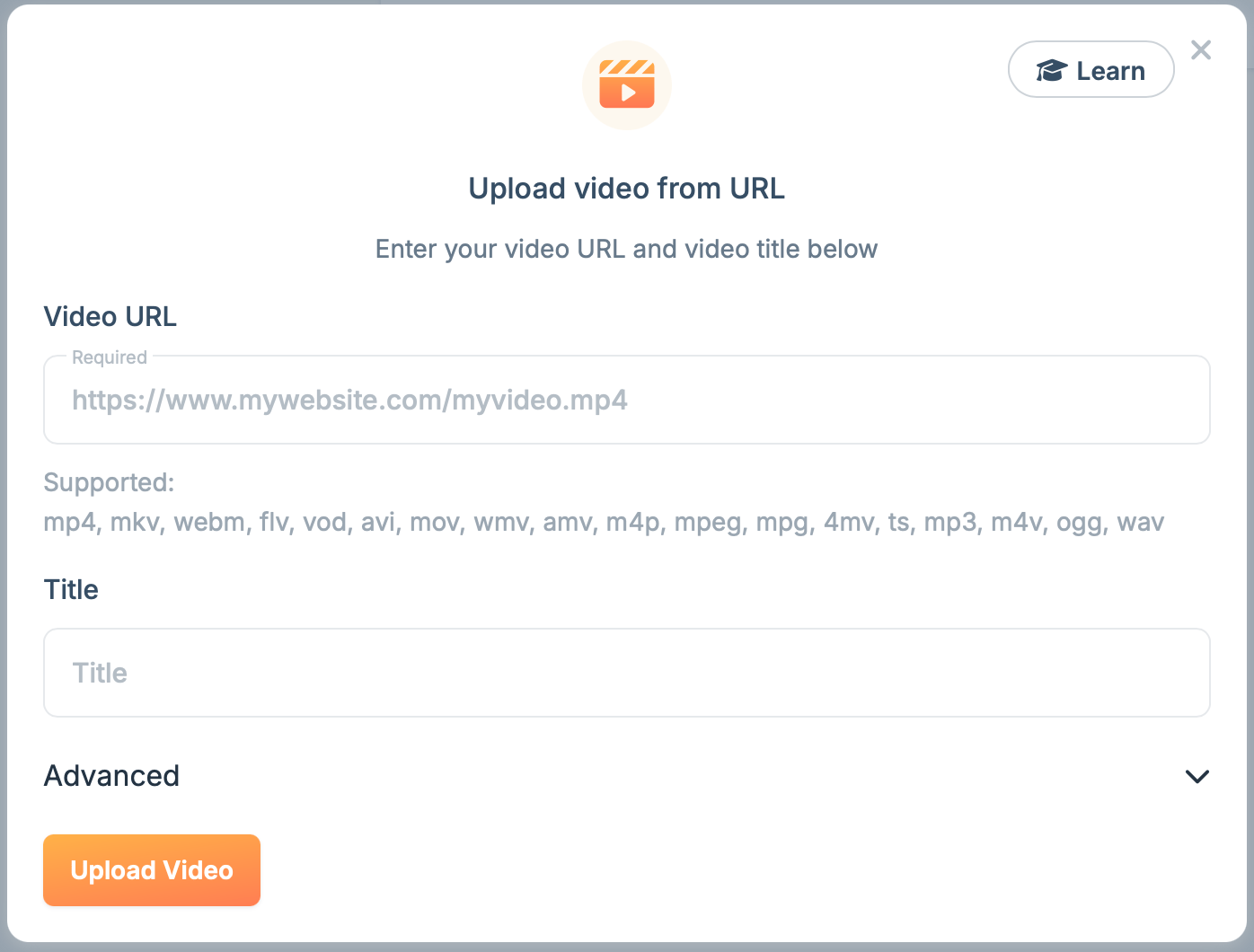 *Click 'Advanced' to input header and key values if they are needed to authenticate the HTTP/HTTPS request to download your video.*
5. The pop up window will close and **your video will start uploading** to your video library.
*Click 'Advanced' to input header and key values if they are needed to authenticate the HTTP/HTTPS request to download your video.*
5. The pop up window will close and **your video will start uploading** to your video library.
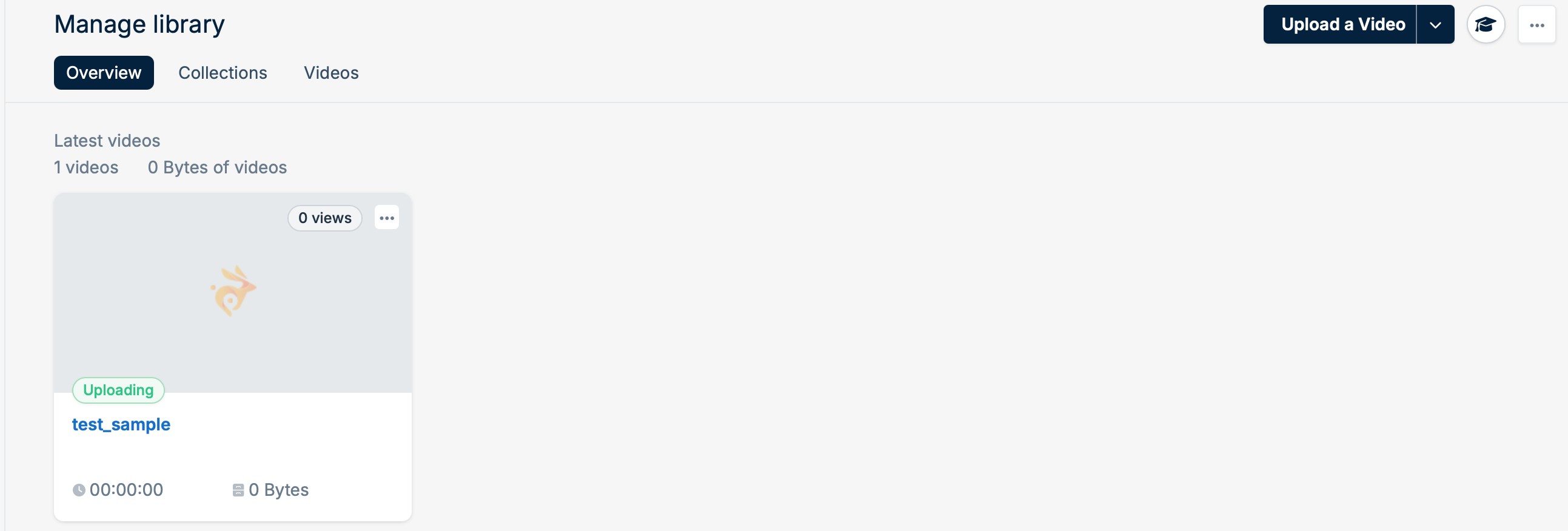 6. Once your video has uploaded, your video will still need to process and transcode. This may take a while pending the size and duration of your video.
7. Once finished your video is now **ready for playback.**
6. Once your video has uploaded, your video will still need to process and transcode. This may take a while pending the size and duration of your video.
7. Once finished your video is now **ready for playback.**
 ## Troubleshooting
Bunny Stream also supports **authentication tokens added to the URL extension** for uploading. You may experience issues with video URLs failing to upload due to authentication issues. These issues vary from platform to platform so please check your token, header values and syntax to authorize your video upload over HTTP/HTTPS.
**How to upload from your Dropbox account**
To upload videos from your Dropbox account into your bunny.net video library please ensure you are the account owner and rights owner to your video content.
1. Login into your **Dropbox account**
2. Navigate to your **Video file**
3. Select the **Video file** you would like to upload into your bunny.net video library.
4. Click the **Copy link** icon in top the right corner next to Share.
5. Paste your Dropbox video file **Link**into your bunny.net video library via **Upload from a URL** form URL field within your video library
6. Edit the Dropbox video file **Link** by updating **'dl=0'** to **'dl=1'** within your video link URL extension. Example:
1. [https://www.dropbox.com/scl/fi/k0nr5njo8hxjv31ez7hx9/example.mp4?rlkey=28mheq7emsr4tgptrc1t9e6lr\&st=g611dzo4\&dl=0](https://www.dropbox.com/scl/fi/k0nr5njo8hxjv31ez7hx9/example.mp4?rlkey=28mheq7emsr4tgptrc1t9e6lr\&st=g611dzo4\&dl=0)
2. [https://www.dropbox.com/scl/fi/k0nr5njo8hxjv31ez7hx9/example.mp4?rlkey=28mheq7emsr4tgptrc1t9e6lr\&st=g611dzo4\&dl=1](https://www.dropbox.com/scl/fi/k0nr5njo8hxjv31ez7hx9/example.mp4?rlkey=28mheq7emsr4tgptrc1t9e6lr\&st=g611dzo4\&dl=1)
7. Select **Upload Video**
8. **Your video will start uploading.**
**How to upload from your Vimeo account** To upload videos from your Vimeo account into your bunny.net video library please ensure you are the account owner and rights owner to your video content.
1. Login into your **Vimeo account**
2. Navigate to your **Video library**
3. Select the **Video** you would like to upload into your bunny.net video library.
4. Click **Share dropdown arrow** 'More sharing options' in top the right corner.
5. Select **Download** A pop up menu with available resolutions to download will appear.
6. Right click the **resolution download** icon you would like to upload into your bunny.net video library.
7. Select **'Copy link address'**
8. Paste your Vimeo video resolution download **Link address** into your bunny.net video library via **Upload from a URL** form URL field within your video library.
9. Select **Upload Video**
10. **Your video will start uploading.**
Ensure any `AuthorizationExpire` timestamp is at least 1 hour (3600 seconds) or longer to make sure uploads are completed before authorization expires.
## Troubleshooting
Bunny Stream also supports **authentication tokens added to the URL extension** for uploading. You may experience issues with video URLs failing to upload due to authentication issues. These issues vary from platform to platform so please check your token, header values and syntax to authorize your video upload over HTTP/HTTPS.
**How to upload from your Dropbox account**
To upload videos from your Dropbox account into your bunny.net video library please ensure you are the account owner and rights owner to your video content.
1. Login into your **Dropbox account**
2. Navigate to your **Video file**
3. Select the **Video file** you would like to upload into your bunny.net video library.
4. Click the **Copy link** icon in top the right corner next to Share.
5. Paste your Dropbox video file **Link**into your bunny.net video library via **Upload from a URL** form URL field within your video library
6. Edit the Dropbox video file **Link** by updating **'dl=0'** to **'dl=1'** within your video link URL extension. Example:
1. [https://www.dropbox.com/scl/fi/k0nr5njo8hxjv31ez7hx9/example.mp4?rlkey=28mheq7emsr4tgptrc1t9e6lr\&st=g611dzo4\&dl=0](https://www.dropbox.com/scl/fi/k0nr5njo8hxjv31ez7hx9/example.mp4?rlkey=28mheq7emsr4tgptrc1t9e6lr\&st=g611dzo4\&dl=0)
2. [https://www.dropbox.com/scl/fi/k0nr5njo8hxjv31ez7hx9/example.mp4?rlkey=28mheq7emsr4tgptrc1t9e6lr\&st=g611dzo4\&dl=1](https://www.dropbox.com/scl/fi/k0nr5njo8hxjv31ez7hx9/example.mp4?rlkey=28mheq7emsr4tgptrc1t9e6lr\&st=g611dzo4\&dl=1)
7. Select **Upload Video**
8. **Your video will start uploading.**
**How to upload from your Vimeo account** To upload videos from your Vimeo account into your bunny.net video library please ensure you are the account owner and rights owner to your video content.
1. Login into your **Vimeo account**
2. Navigate to your **Video library**
3. Select the **Video** you would like to upload into your bunny.net video library.
4. Click **Share dropdown arrow** 'More sharing options' in top the right corner.
5. Select **Download** A pop up menu with available resolutions to download will appear.
6. Right click the **resolution download** icon you would like to upload into your bunny.net video library.
7. Select **'Copy link address'**
8. Paste your Vimeo video resolution download **Link address** into your bunny.net video library via **Upload from a URL** form URL field within your video library.
9. Select **Upload Video**
10. **Your video will start uploading.**
Ensure any `AuthorizationExpire` timestamp is at least 1 hour (3600 seconds) or longer to make sure uploads are completed before authorization expires.