> ## Documentation Index
> Fetch the complete documentation index at: https://bunnynet-cb9733c2-support-migration.mintlify.site/llms.txt
> Use this file to discover all available pages before exploring further.
# Understanding Bunny Stream security options
> Overview of Bunny Stream security features including MediaCage DRM and token authentication.
The Bunny Stream platform offers a multitude of different security options, that will allow you to configure your library in different ways. For example, you can use our MediaCage DRM to prevent unwanted downloads of content, or you can use our Allowed Domains configuration to only allow certain domains to play your video content. Below you will find a detailed description of each feature and what they respectively do.
## Where can I find these settings?
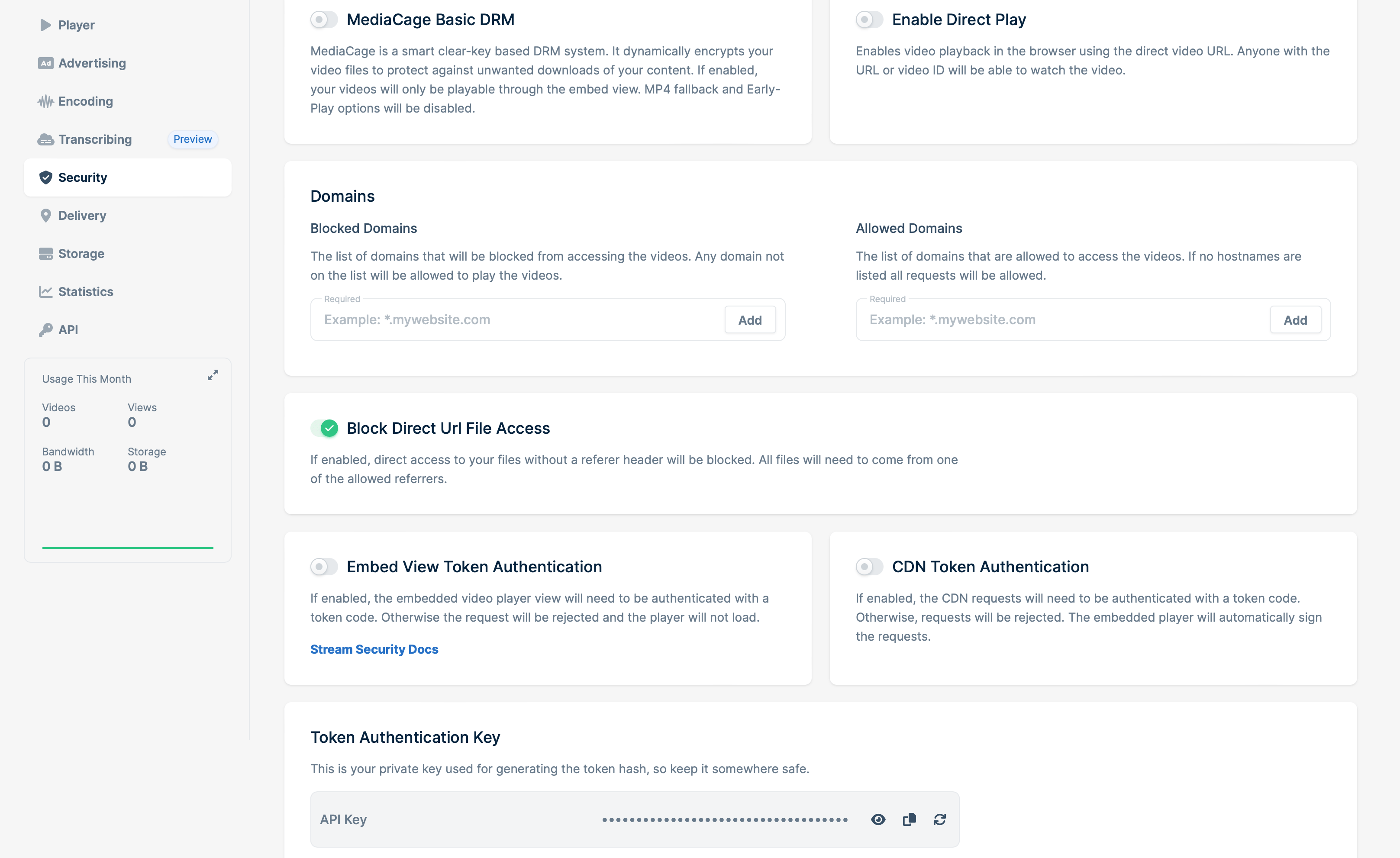
The Bunny Stream library security settings can be found within the Bunny Dashboard. It is under Stream > Your Library > Security.
 ## MediaCage DRM
MediaCage is a basic free DRM system designed to prevent attempts at downloading your video content when enabled. MediaCage is tightly integrated into Bunny.net to dynamically encrypt the video content. It was designed to operate as a device-agnostic system and does not require any special hardware or software support on the client. With the encryption, this then prevents downloads by third party software as MediaCage only allows content to be loaded through the embed player itself.
## Domains
The Domains section lets you control which websites can access your Stream videos:
* **Blocked domains** lists domains that should not be allowed to play your videos. If a domain is not on this list, it can still access the videos unless another security setting blocks it.
* **Allowed domains** lists the only domains that are allowed to access your videos. If you leave this list empty, the allowlist does not restrict playback, but Blocked domains and other security settings still apply.
If you use Allowed domains and enable Chromecast playback, also add `*.gstatic.com` to the allowed list. Chromecast devices and TVs use this Google domain when opening the casting page. Without it, the device may not be able to connect to the CDN and request the playlist or video segment files, which can prevent the video from playing on the TV even though it works in a browser.
Seeing a **403 Forbidden** on playback? Domain entries must be added without a scheme — use `domain.com` or `www.domain.com`, not `https://domain.com`. The entry must exactly match the embedding domain (including the `www.` prefix when applicable). Combining **Block Direct URL File Access** with an empty Allowed domains list will also produce a 403 on previews, thumbnails, and direct links — either add your domain to Allowed domains or disable Block Direct URL File Access.
## Token Authentication
There are two different types of Token Authentication offered for Stream, we can protect the embed view as well as the actual video files itself. This all depends on how you intend to actually show the video. We've got documentation this [here](/docs/stream-security), but you'll need to use the path style tokens when protecting a HLS stream to ensure we protect the TS files too.
If Token Authentication is enabled and you get a **403 Forbidden**, the most common causes are: the `expires` timestamp is in the past, the token was generated with the wrong key/video ID/expiration combination, or the request is missing the `token` and `expires` query parameters entirely. For HLS, remember to use path-style tokens so the `.ts` segments are signed alongside the playlist.
## MediaCage DRM
MediaCage is a basic free DRM system designed to prevent attempts at downloading your video content when enabled. MediaCage is tightly integrated into Bunny.net to dynamically encrypt the video content. It was designed to operate as a device-agnostic system and does not require any special hardware or software support on the client. With the encryption, this then prevents downloads by third party software as MediaCage only allows content to be loaded through the embed player itself.
## Domains
The Domains section lets you control which websites can access your Stream videos:
* **Blocked domains** lists domains that should not be allowed to play your videos. If a domain is not on this list, it can still access the videos unless another security setting blocks it.
* **Allowed domains** lists the only domains that are allowed to access your videos. If you leave this list empty, the allowlist does not restrict playback, but Blocked domains and other security settings still apply.
If you use Allowed domains and enable Chromecast playback, also add `*.gstatic.com` to the allowed list. Chromecast devices and TVs use this Google domain when opening the casting page. Without it, the device may not be able to connect to the CDN and request the playlist or video segment files, which can prevent the video from playing on the TV even though it works in a browser.
Seeing a **403 Forbidden** on playback? Domain entries must be added without a scheme — use `domain.com` or `www.domain.com`, not `https://domain.com`. The entry must exactly match the embedding domain (including the `www.` prefix when applicable). Combining **Block Direct URL File Access** with an empty Allowed domains list will also produce a 403 on previews, thumbnails, and direct links — either add your domain to Allowed domains or disable Block Direct URL File Access.
## Token Authentication
There are two different types of Token Authentication offered for Stream, we can protect the embed view as well as the actual video files itself. This all depends on how you intend to actually show the video. We've got documentation this [here](/docs/stream-security), but you'll need to use the path style tokens when protecting a HLS stream to ensure we protect the TS files too.
If Token Authentication is enabled and you get a **403 Forbidden**, the most common causes are: the `expires` timestamp is in the past, the token was generated with the wrong key/video ID/expiration combination, or the request is missing the `token` and `expires` query parameters entirely. For HLS, remember to use path-style tokens so the `.ts` segments are signed alongside the playlist.