> ## Documentation Index
> Fetch the complete documentation index at: https://bunnynet-cb9733c2-support-migration.mintlify.site/llms.txt
> Use this file to discover all available pages before exploring further.
# Deployments
> Deployments allow you to manage and track different versions of your scripts. Each time you publish a script, a new deployment is created. This feature helps you maintain a history of changes and easily roll back to previous versions, if needed.
A deployment represents a published version of your script. Each time you make changes and publish, a new deployment is created. This system allows you to:
* Maintain a record of modifications and updates.
* Revert to previous versions, if needed.
* Share updates with team members and ensure everyone is aligned.
# Accessing the deployments view
To view your deployments, follow these steps:
1. Log in to the [bunny.net dashboard](https://dash.bunny.net/auth/login?pk_buttonlocation=menu).
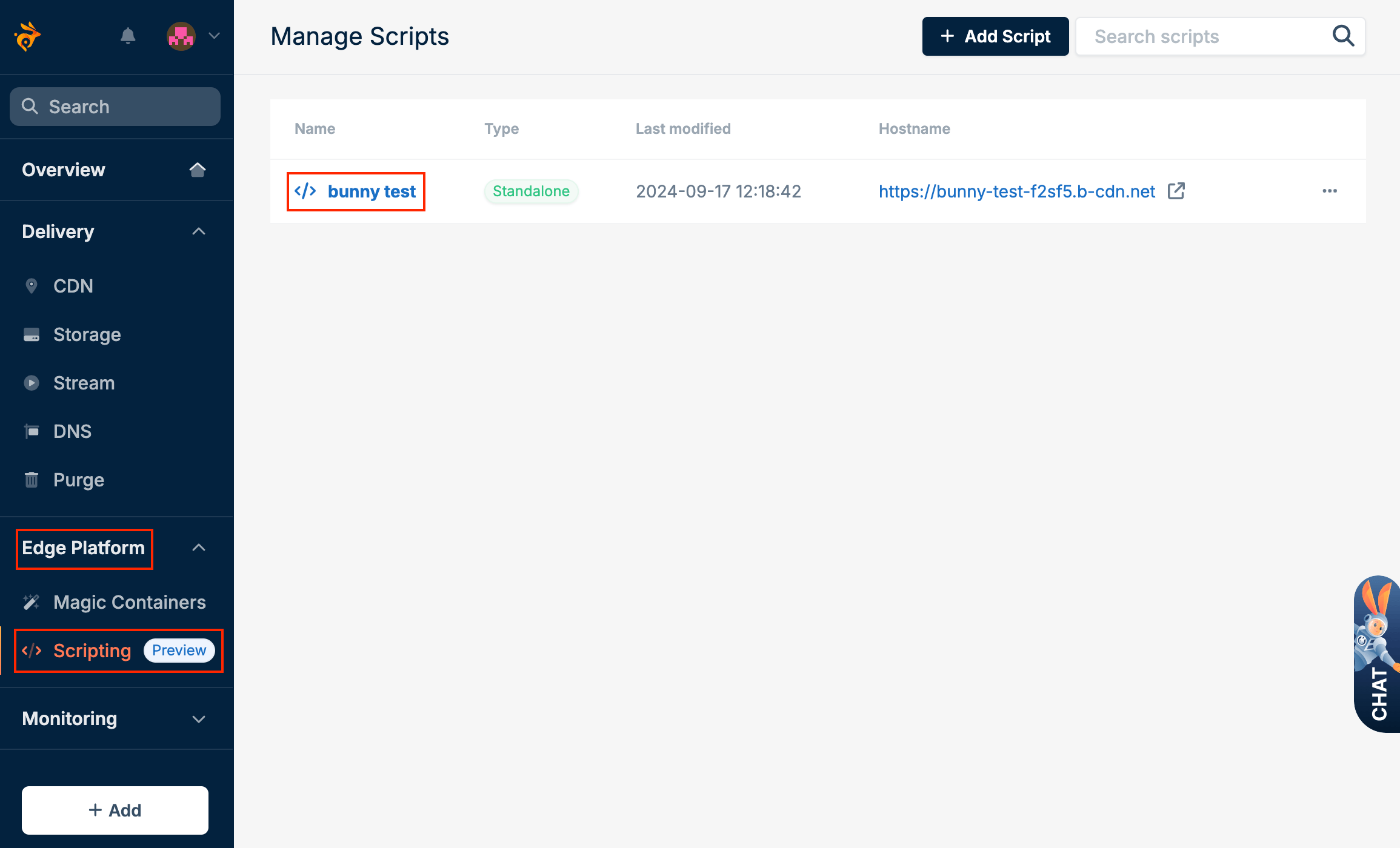
2. Select **Edge Platform**, click on **Scripting**, and select the script.
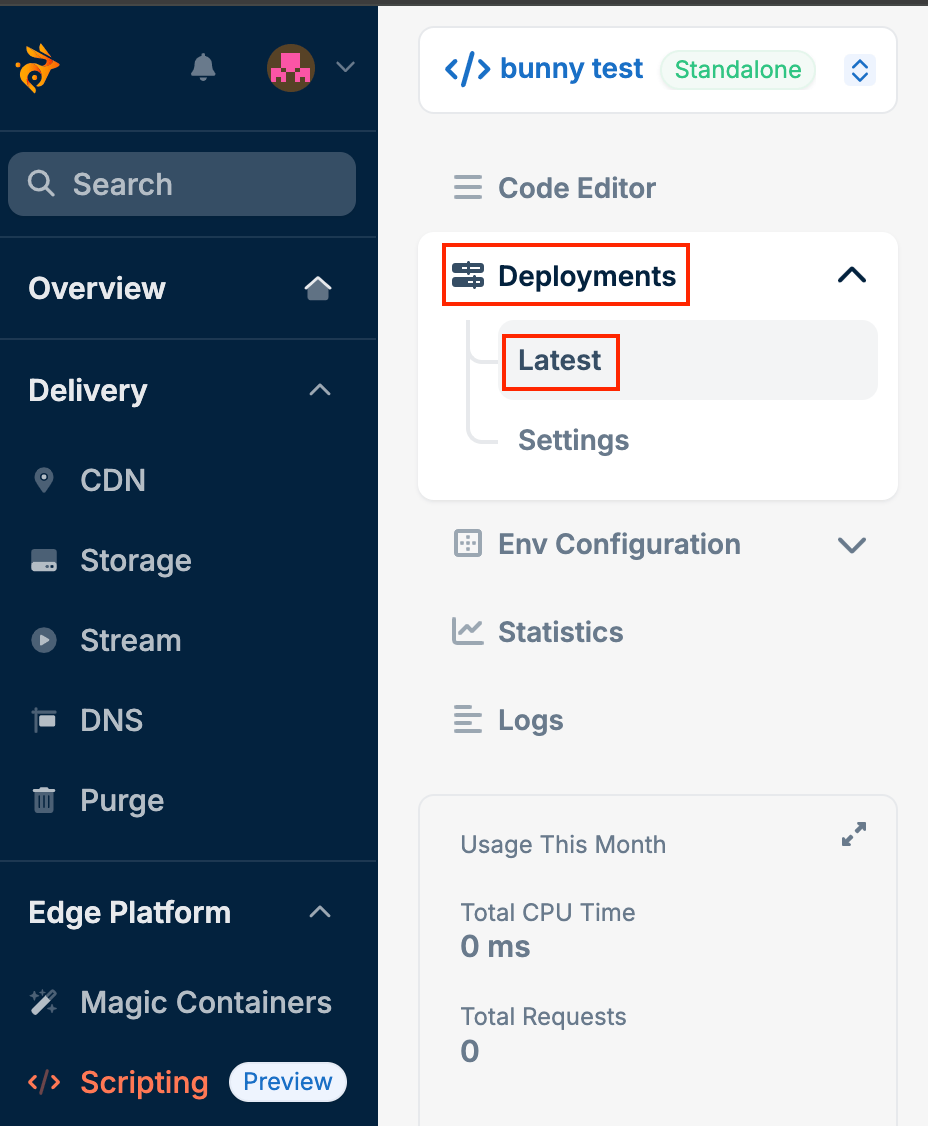
 3. Open the **Deployments** tab and select **Latest**.
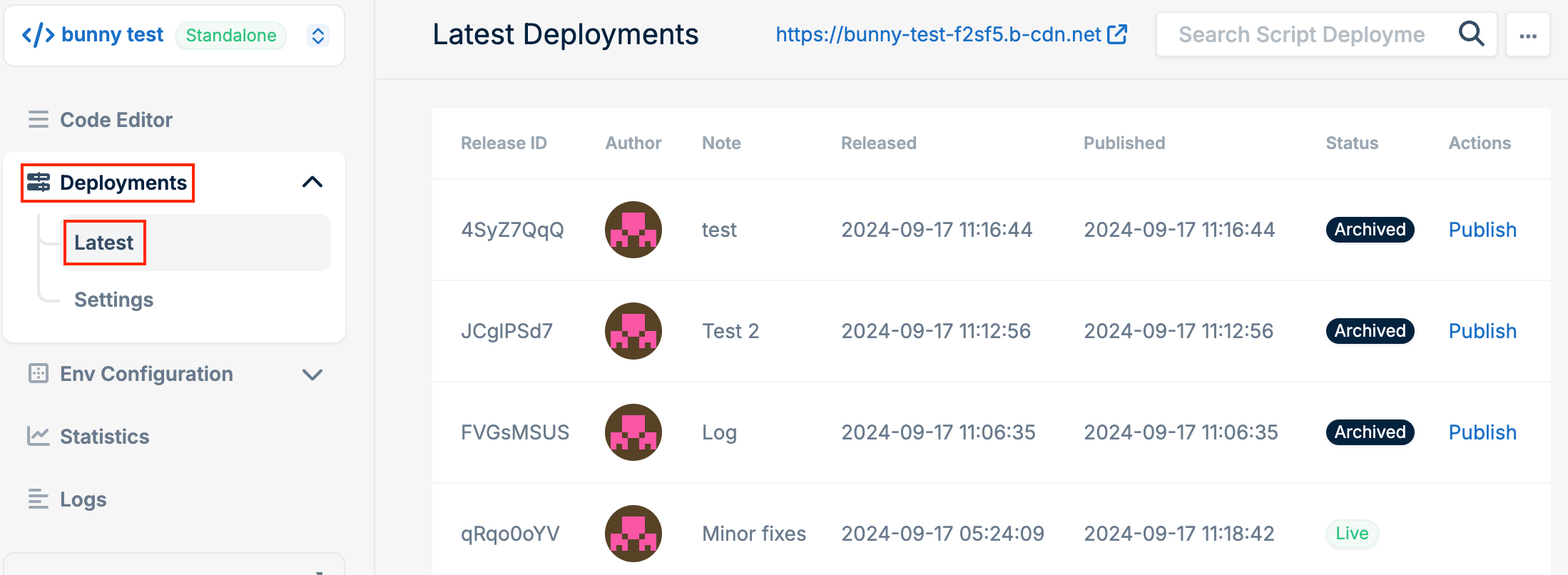 Here, you can view your current deployment as well as all previous deployments.
# Publishing previous deployments
If you need to revert to an earlier version, follow these steps:
1. Open the **Deployments** tab and select **Latest**.
2.
Here, you can view your current deployment as well as all previous deployments.
# Publishing previous deployments
If you need to revert to an earlier version, follow these steps:
1. Open the **Deployments** tab and select **Latest**.
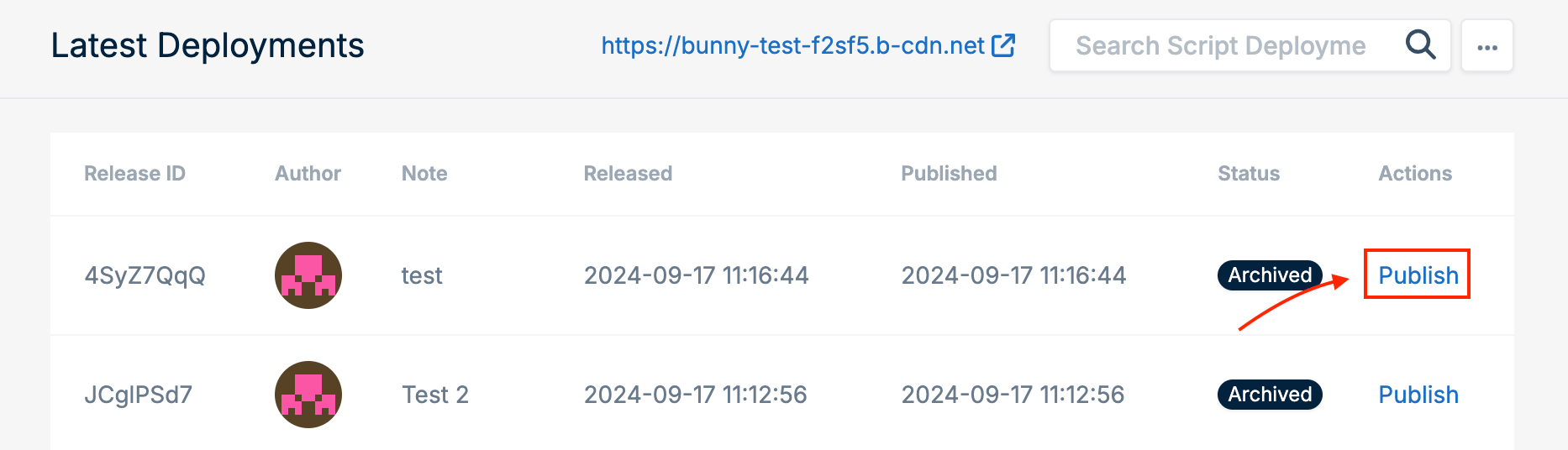
2.  Click **Publish** next to the version you want to deploy.