> ## Documentation Index
> Fetch the complete documentation index at: https://bunnynet-cb9733c2-support-migration.mintlify.site/llms.txt
> Use this file to discover all available pages before exploring further.
# Log Forwarding
> Forward container logs in real-time to your Syslog endpoint for monitoring and debugging.
# What is Log forwarding?
Log forwarding enables your **Magic Container's** application to send raw logs in real-time to the configured Syslog destination. There might be up to a 10-30 second delay between an actual request and the log hitting your Syslog endpoint.
# What Log format and protocol does it support?
**Log format** The logs are sent in the standard **Syslog RFC 5424 & Syslog RFC 3164 protocol**.
An example **RFC 5424 log** would look like this:
```bash bash theme={null}
<134>1 2025-07-10T02:03:30.998108+00:00 - - - - - {"log":"Pod deployment finished","time":"2025-07-10T02:03:25.840126Z"}
```
**Log server protocol** The logs can be sent in either **UDP** or **TCP** transport layer protocol.
### UDP reliability
The UDP protocol is unaware of lost packets and does not contain an auto-retry mechanism. This means that in a case of packet loss or connectivity issue between your application and your logging service, some packets might get lost on the way.
While this is likely a rare occurrence, it is important to keep in mind in case your logging relies on receiving 100% of the requests.
### UDP security
The [UDP protocol](https://bunny.net/academy/network/what-is-user-datagram-protocol-udp-and-how-does-it-work) does not provide a layer of security. This means all the logs are sent to your endpoint in a raw, unencrypted form. While unlikely, please note that those might be vulnerable to a potential **man-in-the-middle attack** if you send critical information as part of your logs.
# How to configure Log forwarding?
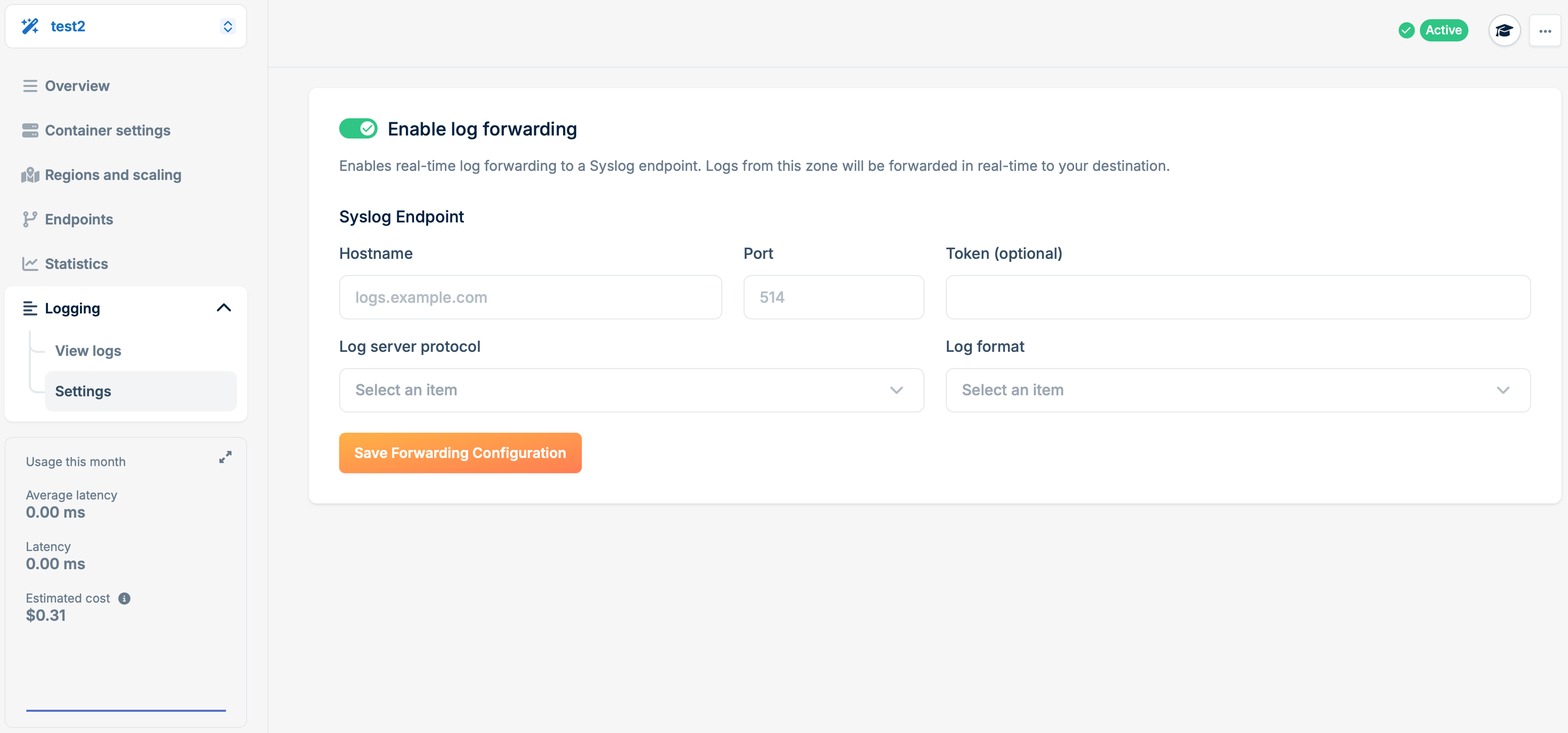
To enable realtime **Log forwarding** on your Magic Container application, you can follow the following steps:
1. Visit your **Logging** page for your Magic Containers application in the left-side menu.
2. Open the **Settings** panel inside of the Logging option.
3. Make sure that the **Enable Log forwarding** feature is enabled.
4. Enter the **Hostname** of your Syslog endpoint. *This can be either an IP or a host address where your listening server is enabled.*
5. Enter the **Port** of your Syslog endpoint. *Make sure the port is open to the internet, as otherwise our servers will not be able to reach you.*
6. *(Optional)* Configure the **Token**. *For secure log forwarding*
7. Select the **Log server protocol** you would like to use.
8. Select the **Log format** of choice.
9. Click on the **Save Forwarding Configuration** button.
10. Run your **Magic Containers application** and monitor your endpoint for new logs.