> ## Documentation Index
> Fetch the complete documentation index at: https://bunnynet-cb9733c2-support-migration.mintlify.site/llms.txt
> Use this file to discover all available pages before exploring further.
# Image Registries
> Connect public or private container registries to Magic Containers.
Magic Containers supports both public and private container registries from Docker Hub and GitHub.
Magic Containers only supports images built for the **linux/amd64** architecture. When building your container image, ensure you target this platform using `--platform linux/amd64`.
## Public registries
Public Docker Hub and GitHub container registries are already connected to Magic Containers. You can deploy any public image without additional configuration.
## Private registries
To deploy images from private repositories, connect your registry by providing authentication credentials.
In the bunny.net dashboard, go to **Magic Containers** and select **Image Registries**.
Click **Add Image Registry**.
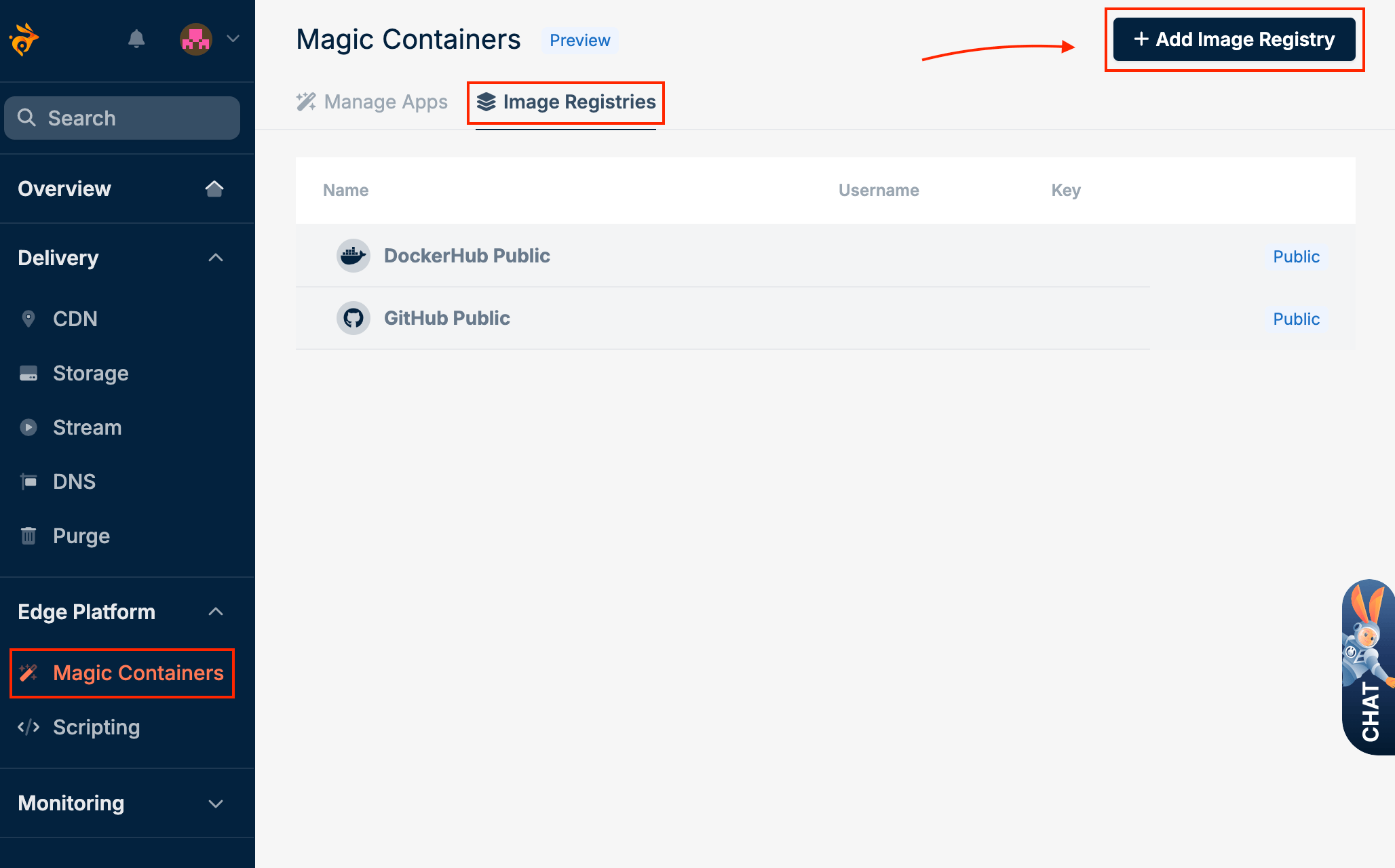 Fill in the following fields:
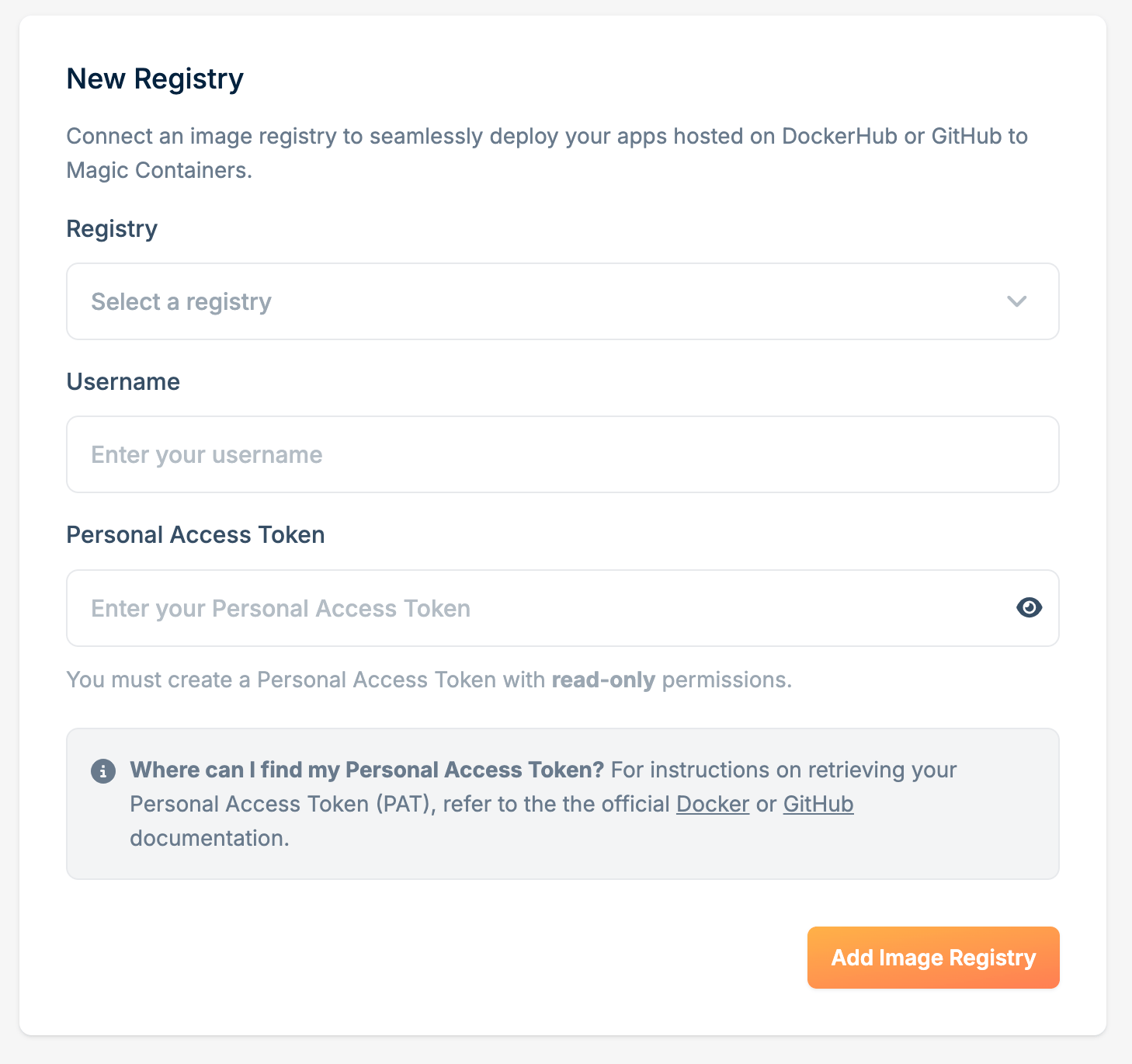 * **Registry** - Select Docker or GitHub
* **Username** - Your username or organization name
* **Personal access token** - Your access token with read-only permissions
Click **Add Image Registry**.
To create a personal access token, see the official [GitHub](https://docs.github.com/en/packages/working-with-a-github-packages-registry/working-with-the-container-registry#authenticating-with-a-personal-access-token-classic) or [Docker](https://docs.docker.com/security/for-developers/access-tokens/#create-an-access-token) documentation.
* **Registry** - Select Docker or GitHub
* **Username** - Your username or organization name
* **Personal access token** - Your access token with read-only permissions
Click **Add Image Registry**.
To create a personal access token, see the official [GitHub](https://docs.github.com/en/packages/working-with-a-github-packages-registry/working-with-the-container-registry#authenticating-with-a-personal-access-token-classic) or [Docker](https://docs.docker.com/security/for-developers/access-tokens/#create-an-access-token) documentation.