> ## Documentation Index
> Fetch the complete documentation index at: https://bunnynet-cb9733c2-support-migration.mintlify.site/llms.txt
> Use this file to discover all available pages before exploring further.
# Content Offloading
> Enable content offloading in the bunny.net WordPress plugin to automatically transfer media files to Bunny Storage.
With Bunny Offloader, your content is automatically transferred to Bunny Storage, enabling multi-region replication, near-unlimited scalability, and up to 5x faster performance compared to traditional delivery methods.
Offloading is only supported when using the official bunny.net plugin and managing DNS through bunny.net. It is not compatible with third-party plugins or external DNS providers.
## Prerequisites
* A [bunny.net account](https://dash.bunny.net)
* Access to manage your domain's DNS settings
## How it works
The Offloader requires that your domain uses Bunny DNS with CDN Acceleration enabled. Offloading cannot function if your domain is managed by another DNS provider or lacks acceleration.
## Step 1: Migrate your domain to Bunny DNS
Skip this step if your domain is already using Bunny DNS.
Log in to bunny.net and go to **Delivery → DNS → Add DNS Zone**. Enter your domain name and click **Add DNS Zone**.
Follow the setup instructions, then click **Okay, I'm done**. Click **Add Record**, enter the required details, and continue adding records as needed.
Confirm your DNS settings have propagated using the [bunny DNS Lookup Tool](https://bunny.net/tools/dns-lookup). Look for NS records pointing to `kiki.bunny.net` or `coco.bunny.net`.
When creating a DNS zone, it must be based on the root domain (e.g., `domain.com`). Creating a zone for `www.domain.com` or `something.domain.com` is not valid.
When migrating your DNS, make sure to transfer **all** existing DNS records, not just the website-related ones. Failing to do so can result in critical services (like email) going offline.
## Step 2: Enable CDN Acceleration in the plugin
If your domain was already using Bunny DNS when you installed the plugin, the "Enable CDN Acceleration" option may not appear. Skip to Step 3 to check if it's already enabled. If not, you can reset the plugin to start the configuration from scratch.
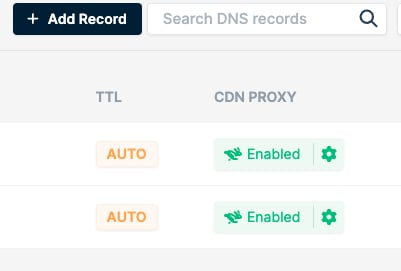
In the bunny.net dashboard, go to the **DNS** section. Click the button in the **CDN Proxy** (or CDN acceleration) column next to each DNS record.
 In your WordPress Admin Panel, navigate to **bunny.net → Offloader**. Follow the on-screen prompts and click **Enable CDN Acceleration**. You'll receive an orange confirmation message once configured.
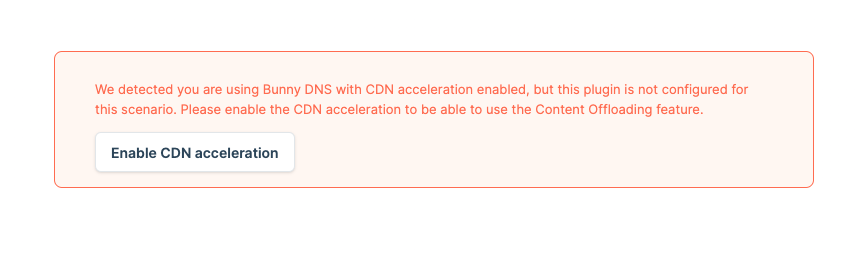 Enabling CDN acceleration disconnects your current Pull Zone and creates a new one. Make sure to copy any essential settings (Edge Rules, Cache settings, Optimizer configurations) from the old zone to the new one. The old Pull Zone can be safely deleted after migration.
## Step 3: Confirm CDN Acceleration is working
Verify your setup using any of these methods:
* In the bunny.net **DNS** section, a green **CDN Proxy** icon next to your DNS record indicates proper CDN integration.
Enabling CDN acceleration disconnects your current Pull Zone and creates a new one. Make sure to copy any essential settings (Edge Rules, Cache settings, Optimizer configurations) from the old zone to the new one. The old Pull Zone can be safely deleted after migration.
## Step 3: Confirm CDN Acceleration is working
Verify your setup using any of these methods:
* In the bunny.net **DNS** section, a green **CDN Proxy** icon next to your DNS record indicates proper CDN integration.
 * Inspect response headers from your site. Look for:
* `CDN-ProxyVer: 1.04`
* `CDN-RequestPullSuccess: True`
* `CDN-RequestPullCode: 200`
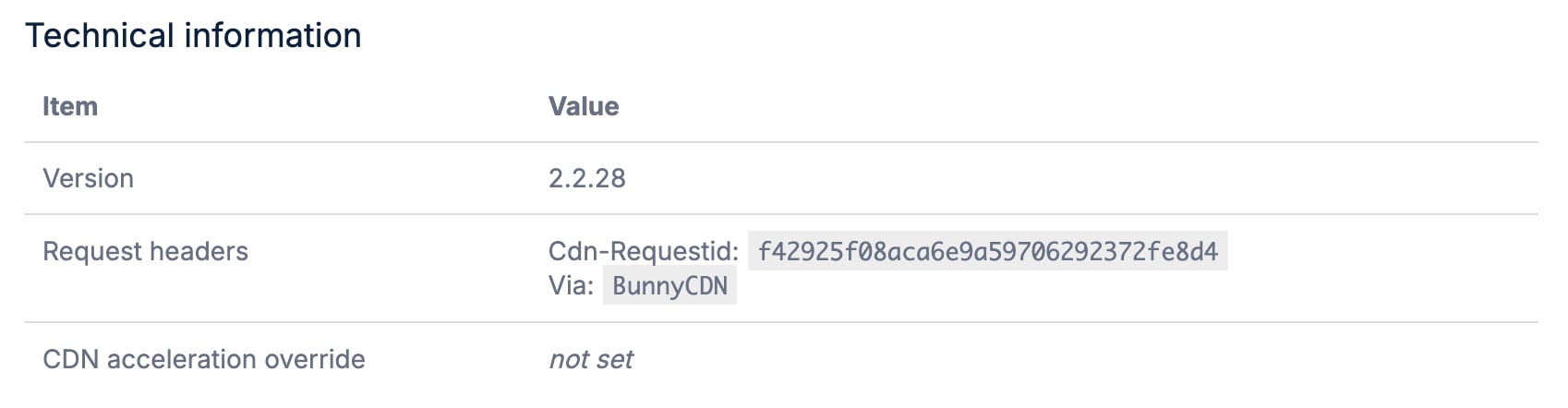
* In your WordPress Admin Panel, go to **bunny.net → About**. Under **Technical Information**, check the **Request Headers** section. If you see both `Cdn-RequestId` and `Via: BunnyCDN`, everything is working.
* Inspect response headers from your site. Look for:
* `CDN-ProxyVer: 1.04`
* `CDN-RequestPullSuccess: True`
* `CDN-RequestPullCode: 200`
* In your WordPress Admin Panel, go to **bunny.net → About**. Under **Technical Information**, check the **Request Headers** section. If you see both `Cdn-RequestId` and `Via: BunnyCDN`, everything is working.
 ## Step 4: Enable the Offloader
In your WordPress Admin Panel, navigate to **bunny.net → Offloader**. Toggle on **Content Offloading**, adjust settings to your preference, and click **Save Settings**.
## Step 4: Enable the Offloader
In your WordPress Admin Panel, navigate to **bunny.net → Offloader**. Toggle on **Content Offloading**, adjust settings to your preference, and click **Save Settings**.
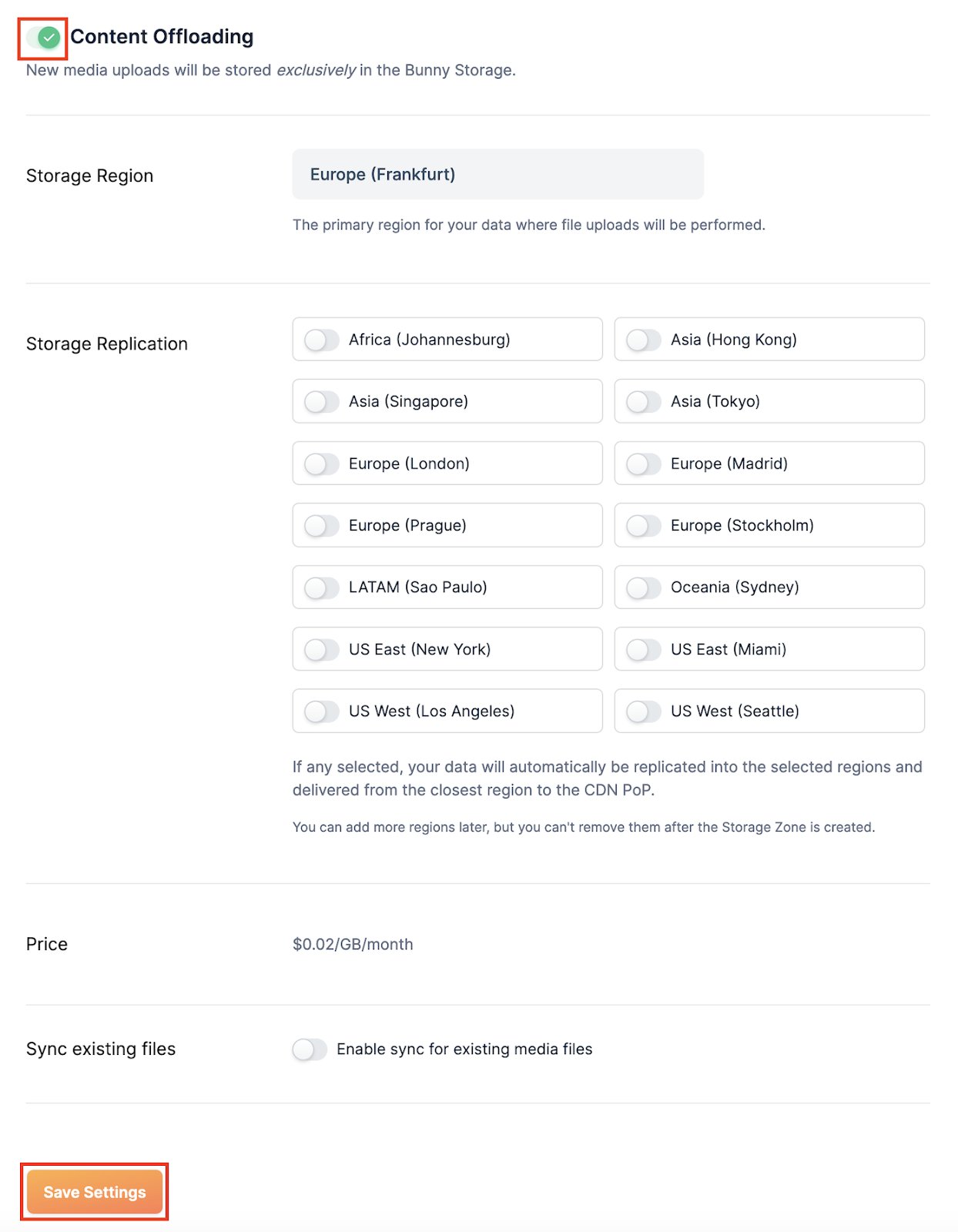 You can monitor offloaded content through the Offloader dashboard.