> ## Documentation Index
> Fetch the complete documentation index at: https://bunnynet-cb9733c2-support-migration.mintlify.site/llms.txt
> Use this file to discover all available pages before exploring further.
# Shopware
> Configure bunny.net CDN with Shopware to accelerate your e-commerce store and improve customer experience.
Shopware can serve media through Bunny CDN using a community-built adapter that uploads your content to a Bunny Storage zone and delivers it through a connected Pull Zone.
The [Shopware adapter](https://github.com/tinect/TinectMediaBunnycdn) is built and maintained by the community, not by bunny.net.
The adapter uploads your media to a Bunny [Storage Zone](/storage), which is then delivered through a Pull Zone that uses the Storage Zone as its origin. Set up both before configuring Shopware. For details, see [How to create your first Pull Zone](/cdn/quickstart).
Download the latest `TinectMediaBunnycdn.zip` from the adapter's [GitHub releases page](https://github.com/tinect/TinectMediaBunnycdn/releases).
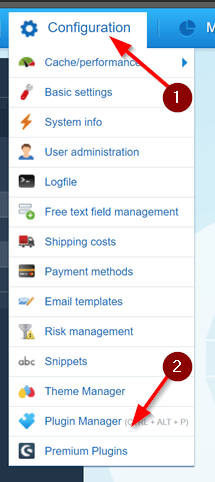
In Shopware, open **Configuration → Plugin Manager**.
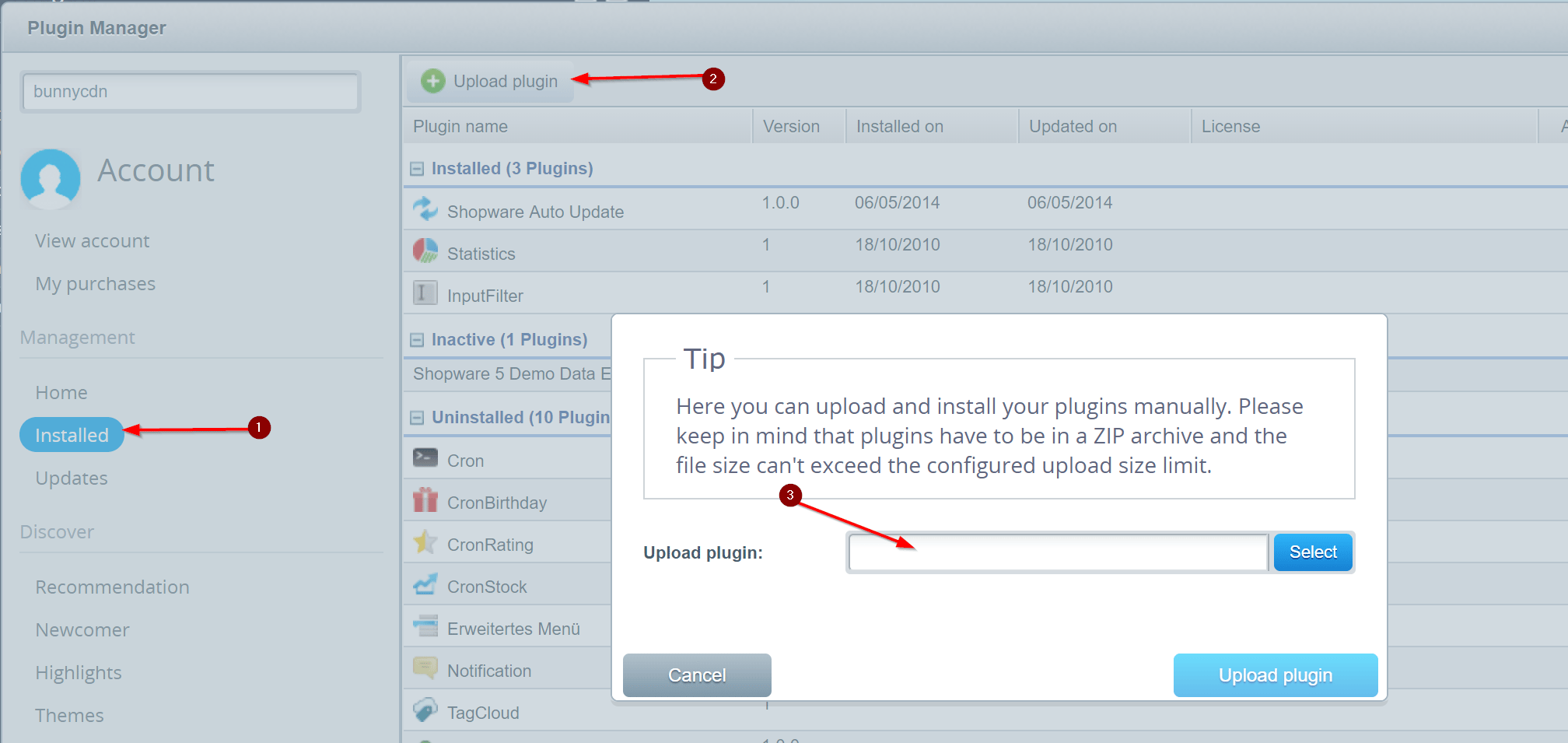
 Go to **Installed**, click **Upload Plugin**, and select the ZIP file you downloaded.
 The plugin appears under **Uninstalled**. Click the green **+** to install it.
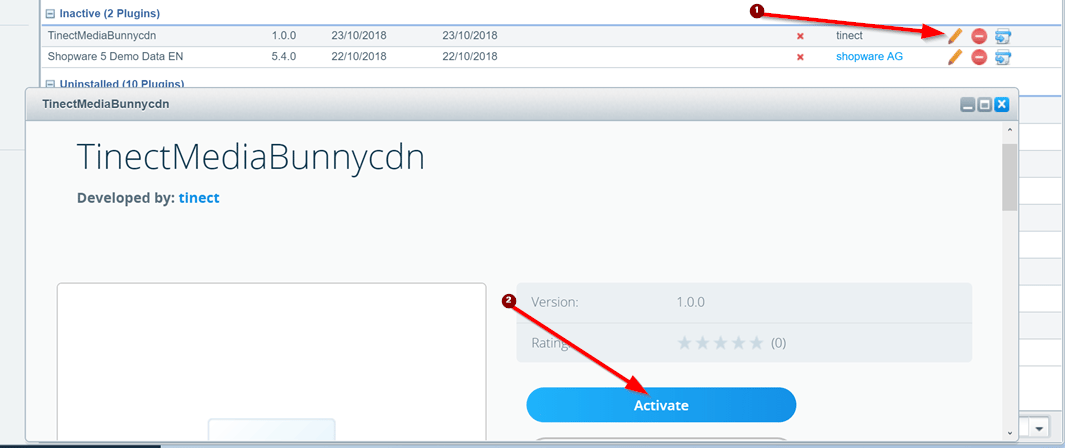
 Once installed, the plugin is **Inactive**. Click the pencil icon next to its name, then click **Activate**. If prompted to clear caches, confirm.
 You'll need SSH or FTP access to edit a PHP file. In your Shopware install directory, open `config.php` and append the following to the configuration array:
```php theme={null}
'cdn' => [
'backend' => 'bunnycdn',
'adapters' => [
'bunnycdn' => [
'type' => 'bunnycdn',
'mediaUrl' => 'https://PULLZONE.b-cdn.net/',
'apiUrl' => 'https://storage.bunnycdn.com/STORAGEZONENAME/',
'apiKey' => 'secret-api-key',
],
],
],
```
Replace `PULLZONE` with your Pull Zone hostname, `STORAGEZONENAME` with your Storage Zone name, and `apiKey` with the password from your Storage Zone's **FTP & API Access** page.
Finally, upload your existing local media to the Storage Zone:
```bash theme={null}
bin/console sw:media:migrate --from=local --to=bunnycdn
```
Your Shopware store now serves media through Bunny CDN.
You'll need SSH or FTP access to edit a PHP file. In your Shopware install directory, open `config.php` and append the following to the configuration array:
```php theme={null}
'cdn' => [
'backend' => 'bunnycdn',
'adapters' => [
'bunnycdn' => [
'type' => 'bunnycdn',
'mediaUrl' => 'https://PULLZONE.b-cdn.net/',
'apiUrl' => 'https://storage.bunnycdn.com/STORAGEZONENAME/',
'apiKey' => 'secret-api-key',
],
],
],
```
Replace `PULLZONE` with your Pull Zone hostname, `STORAGEZONENAME` with your Storage Zone name, and `apiKey` with the password from your Storage Zone's **FTP & API Access** page.
Finally, upload your existing local media to the Storage Zone:
```bash theme={null}
bin/console sw:media:migrate --from=local --to=bunnycdn
```
Your Shopware store now serves media through Bunny CDN.