> ## Documentation Index
> Fetch the complete documentation index at: https://bunnynet-cb9733c2-support-migration.mintlify.site/llms.txt
> Use this file to discover all available pages before exploring further.
# Custom Hostname
> Serve content from your own branded domain like cdn.yourdomain.com.
Use a custom hostname to serve CDN content from your own domain instead of the default bunny.net URL.
1. Open your pull zone in the [dashboard](https://dash.bunny.net)
2. Locate the **Hostnames** panel in the General section
3. Enter your custom domain (e.g., `cdn.yourdomain.com`)
4. Click **Add hostname**
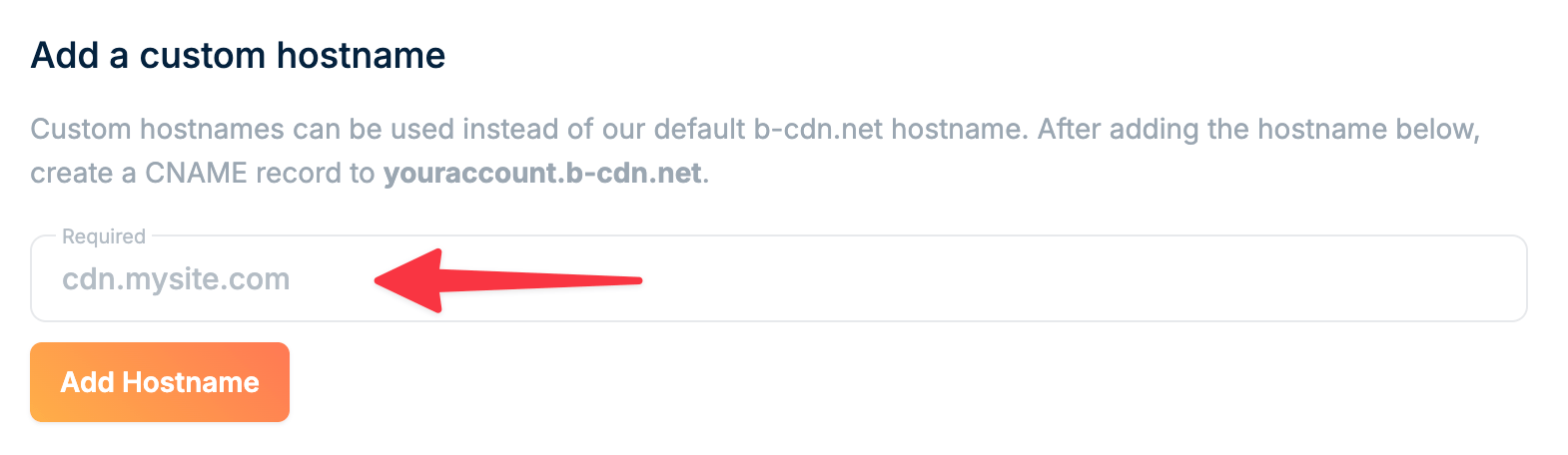 The hostname appears in the Linked Hostnames list.
Copy the CNAME record value shown below the hostname field. You'll need this for the next step.
The hostname appears in the Linked Hostnames list.
Copy the CNAME record value shown below the hostname field. You'll need this for the next step.
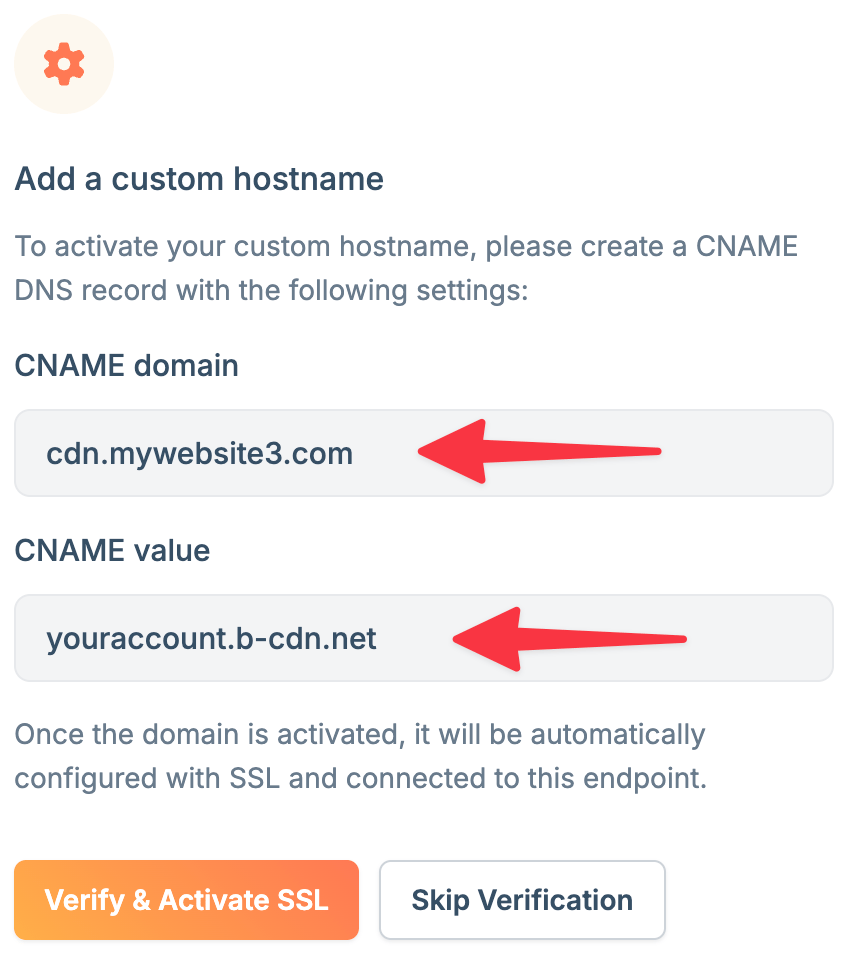 Add a CNAME record at your DNS provider:
1. Log in to your DNS provider (Cloudflare, Route 53, or similar)
2. Create a new **CNAME** record:
* **Name/Host**: Your subdomain (e.g., `cdn`)
* **Type**: CNAME
* **Value**: The CNAME from step 2 (e.g., `yourzone.b-cdn.net`)
* **TTL**: 3600 seconds or lower
On Cloudflare, disable the proxy option (orange cloud icon). Proxying interferes with DNS resolution and prevents your custom domain from working with bunny.net.
Save the DNS record. Your domain connects to bunny.net once DNS propagates, typically within a few minutes to an hour.
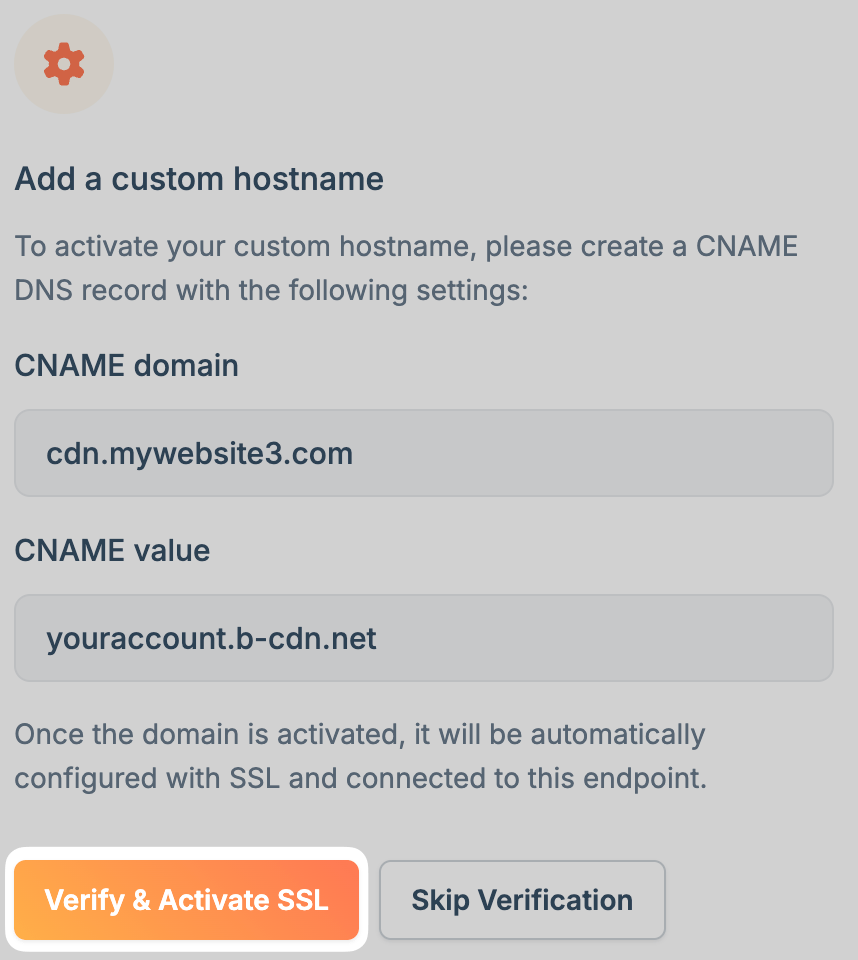
Click **Verify & Activate SSL** to get a free Let's Encrypt certificate for your custom hostname.
Add a CNAME record at your DNS provider:
1. Log in to your DNS provider (Cloudflare, Route 53, or similar)
2. Create a new **CNAME** record:
* **Name/Host**: Your subdomain (e.g., `cdn`)
* **Type**: CNAME
* **Value**: The CNAME from step 2 (e.g., `yourzone.b-cdn.net`)
* **TTL**: 3600 seconds or lower
On Cloudflare, disable the proxy option (orange cloud icon). Proxying interferes with DNS resolution and prevents your custom domain from working with bunny.net.
Save the DNS record. Your domain connects to bunny.net once DNS propagates, typically within a few minutes to an hour.
Click **Verify & Activate SSL** to get a free Let's Encrypt certificate for your custom hostname.
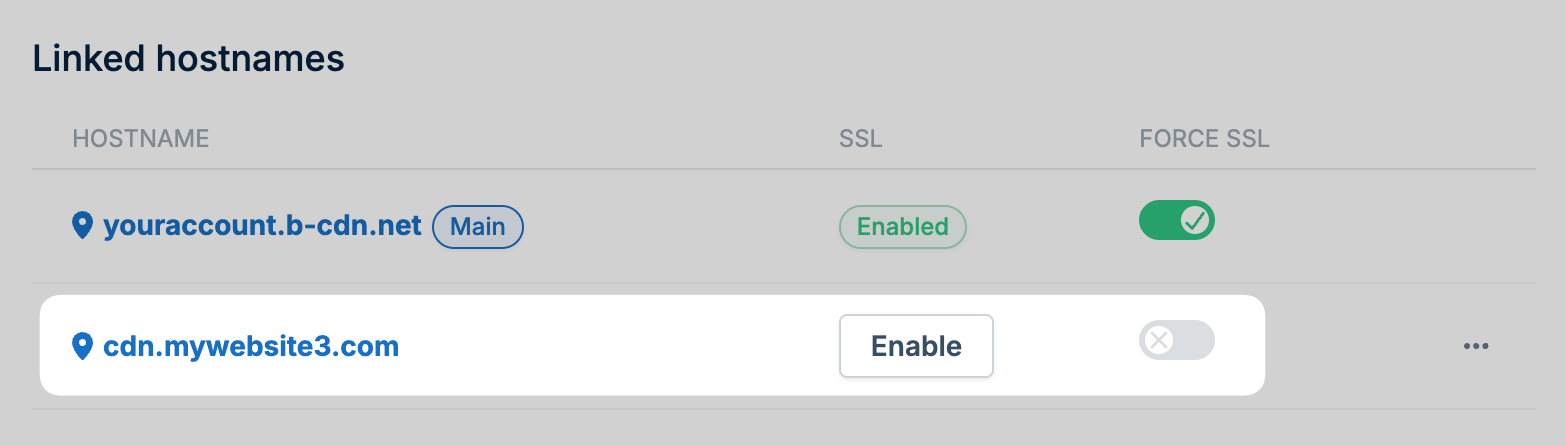
 If you skip SSL verification initially, find your hostname in the **Linked Hostnames** section and click **Enable** to activate a free certificate or upload your own.
 ## Root domains
CNAME records cannot be created at the apex level (`yourdomain.com`) per the DNS specification. Most DNS providers don't support non-standard record types like ALIAS or ANAME that work around this limitation.
Pull Zones do not support direct IP address connections. There is no stable
anycast IP that can be used with A records to point a domain to a Pull Zone.
You can use a direct IP as the origin with a custom Host header, but pointing
an A record to a specific Bunny IP is not supported. See [How to set up a
direct IP origin URL](/cdn/edge-rules/ip-origin) for more information.
To use a root domain with your Pull Zone, you have two options:
1. **Use Bunny DNS (recommended)**: Bunny DNS supports CNAME flattening on apex domains, allowing you to point your root domain directly to a Pull Zone. See [CDN Acceleration](/cdn/cdn-acceleration) for setup instructions.
2. **Redirect apex to www**: Create a CNAME for `www.yourdomain.com` pointing to your Pull Zone, then set up an HTTP redirect from your root domain to `www`.
## Root domains
CNAME records cannot be created at the apex level (`yourdomain.com`) per the DNS specification. Most DNS providers don't support non-standard record types like ALIAS or ANAME that work around this limitation.
Pull Zones do not support direct IP address connections. There is no stable
anycast IP that can be used with A records to point a domain to a Pull Zone.
You can use a direct IP as the origin with a custom Host header, but pointing
an A record to a specific Bunny IP is not supported. See [How to set up a
direct IP origin URL](/cdn/edge-rules/ip-origin) for more information.
To use a root domain with your Pull Zone, you have two options:
1. **Use Bunny DNS (recommended)**: Bunny DNS supports CNAME flattening on apex domains, allowing you to point your root domain directly to a Pull Zone. See [CDN Acceleration](/cdn/cdn-acceleration) for setup instructions.
2. **Redirect apex to www**: Create a CNAME for `www.yourdomain.com` pointing to your Pull Zone, then set up an HTTP redirect from your root domain to `www`.